

Browse Your Cloud Resources#
 Discovery shows every resource across all connected cloud accounts in one place. The inventory updates automatically on the configured platform schedule and you can trigger a manual refresh per connection at any time.
Changed in version 1.2.0: Discovery now uses a rationalised multi-cloud model with support-level classification, type-specific metadata, resource icons, and a typed relationship graph. The inventory is still read-only, but it now carries more provider-native context for each resource.
How Discovery classifies resources#
Every resource is assigned a support level during discovery:
Support level |
Meaning |
|---|---|
Full |
The resource is CMDB-worthy: persistent, customer-managed, operationally relevant, and shown with category, icon, metadata, history, and relationships where available |
CostOnly |
The resource is known from provider or billing data, but is not treated as a first-class CMDB item. It may still be used for cost analysis and allocation |
Full resources are classified through a provider-specific registry for Azure, AWS, and GCP. When a provider type is not in the registry, Discovery keeps the data conservative: the resource can still be tracked for cost purposes, but it is not promoted to a full inventory item until coverage is added.
When a resource type is unknown or ambiguous, Discovery can use AI-assisted categorisation as a fallback. The provider registry is still preferred; AI is used only to choose the most likely category when the platform does not already have a precise mapping.
Discovery categories include Compute, Network, Container, Database, Storage, Analytics, Integration, AI, Security & Identity, and Other. See Supported Services for the current coverage model.
Filters#
Filter |
Behaviour |
|---|---|
Provider |
Multi-select: Azure, AWS, GCP |
Connection |
Searchable multi-select — shows connection name and provider type |
Resource Type |
Free-text input; press Enter to add type chips (e.g. |
Support Level |
Filter Full inventory resources or CostOnly resources |
Groups |
3-column picker: Organisation tree (max 1 selection), Environments (flat, max 1), Projects (flat, max 1). “Open Allocation” link navigates to FinOps Allocate. |
Category tabs |
Row of tabs above the grid — not a popover |
Search |
Global name search in the top search bar |
The resource grid#
Column |
Description |
|---|---|
Name |
Resource display name |
Provider |
Azure / AWS / GCP badge |
Icon |
Resource-type icon when available |
Category |
Colour-coded category chip |
Support Level |
Full or CostOnly |
Resource Type |
Provider-specific type string |
Region |
Deployment location |
Discovered On |
|
Columns are sortable by clicking the column header.
Grid-level actions:
Export — download the current filtered list as CSV
Refresh — triggers an on-demand discovery scan for a specific connection
Discovery timing after a manual refresh trigger:
Provider |
Approximate time |
|---|---|
Azure |
1–3 minutes |
AWS |
5–10 minutes |
GCP |
3–8 minutes |
Resource detail — 4 tabs#
Click any row to open the resource detail panel.
Overview tab#
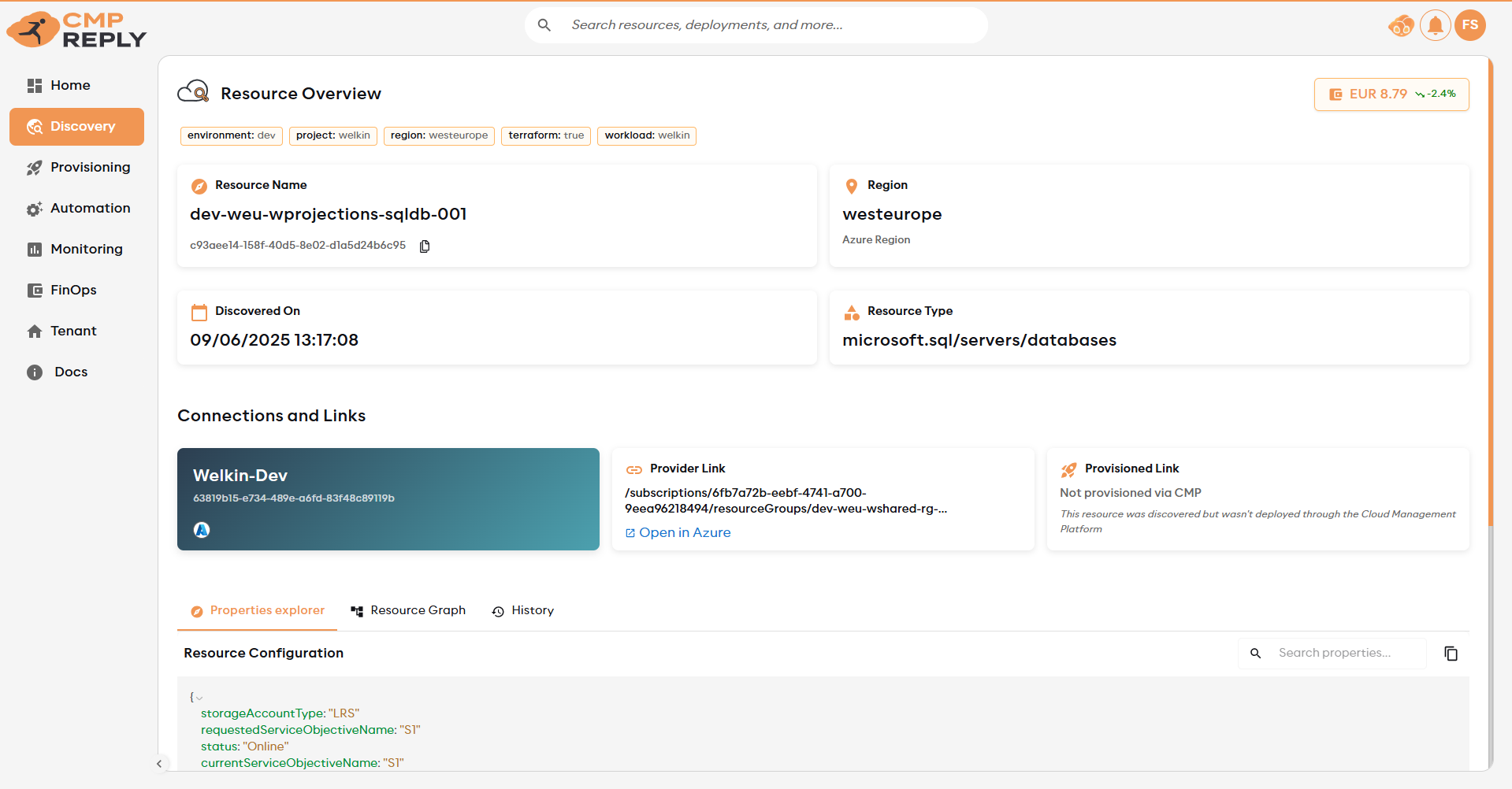
Name, Region, Resource Type, First Discovered, Last Updated
Provider, Category, Support Level, and resource-type icon
Connection card showing which connection manages this resource
“View in provider console” link — opens the resource directly in the cloud console
“Provisioned via Reply CMP” badge — if the resource was created through Reply CMP
 Provisioning, a link to the deployment is shown; otherwise shows “Not provisioned via CMP”
Properties tab#
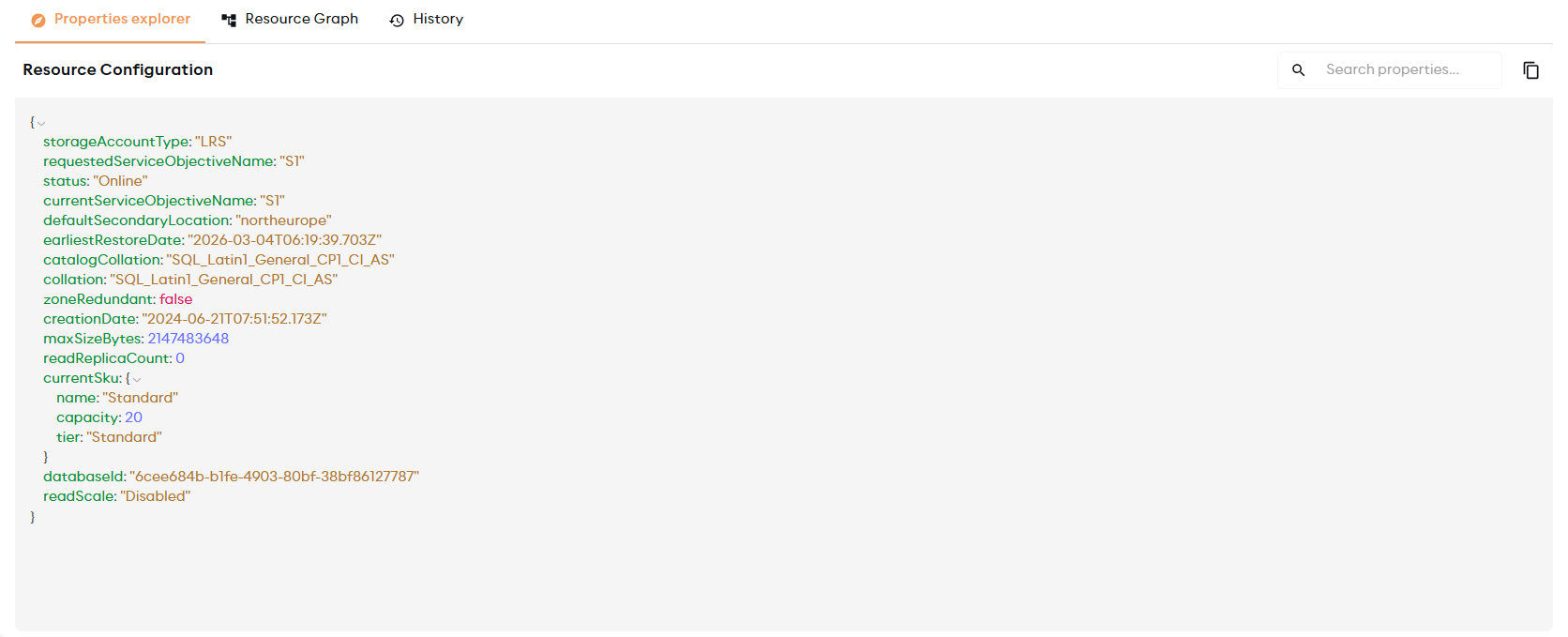
Normalised properties shared by all providers
Type-specific properties collected from Azure, AWS, or GCP APIs for the resource type
Full JSON configuration as returned by the provider API, when available
Inline key search to filter the JSON
Copy the entire JSON or individual property values
Graph tab#
Dependency visualisation showing upstream and downstream resource relationships. Click any node to open that resource’s detail panel.
Example chain: Network Interface → Virtual Machine → Subnet → Virtual Network
Relationships are typed, so the graph can distinguish relationships such as:
Relationship type |
Typical meaning |
|---|---|
Uses |
A resource references or consumes another resource |
Attached To |
A disk, interface, or similar child resource is attached to a compute or parent resource |
Member Of |
A resource belongs to a parent grouping such as a cluster, VPC, VNet, or project |
Contains |
A parent resource contains child resources |
Routes To |
A network resource routes traffic to another resource |
Secured By |
A resource is protected or constrained by a security resource |
Depends On |
A general dependency where a more specific relationship is not available |
Relationship origins are also tracked. Provider-sourced relationships come directly from cloud APIs or resource properties; AI-inferred relationships fill gaps where the provider does not expose a complete topology.
Why relationships may be missing or inferred#
Discovery only creates a relationship when there is enough evidence: matching IDs or names, compatible resource types, shared provider or scope, and supporting properties from the resource configuration. Weak generic matches are ignored, and a resource is never related to itself.
Provider APIs do not always expose complete topology. When a provider does not return a relationship directly, Reply CMP may infer one from available metadata and mark its origin accordingly. CostOnly-to-CostOnly relationships are intentionally limited so the graph does not imply dependencies that are only visible in billing data.
History tab#
Change timeline with configuration diffs and AI rollback suggestions. See Investigate a Configuration Change.
Deleted resources#
Resources removed from the cloud remain visible in Discovery with a deleted status. Discovery is append-only by design for audit purposes. Use the Lifecycle filter to hide deleted resources when not needed.
When a resource is missing or has limited detail#
If a resource does not appear as a Full inventory item, check:
The connection completed a successful Discovery run
The resource type is listed as Full coverage in Supported Services
The cloud credentials have read access to the provider API used by that resource type
The resource is not only represented in billing data, which may classify it as CostOnly
CostOnly resources are not necessarily errors. They usually mean Reply CMP has enough data to include the resource in financial analysis, but not enough supported metadata to expose it as a complete CMDB entry.