

First Login#
This page walks you through the Reply CMP application shell so that every element is familiar before you start a task.
The application layout#
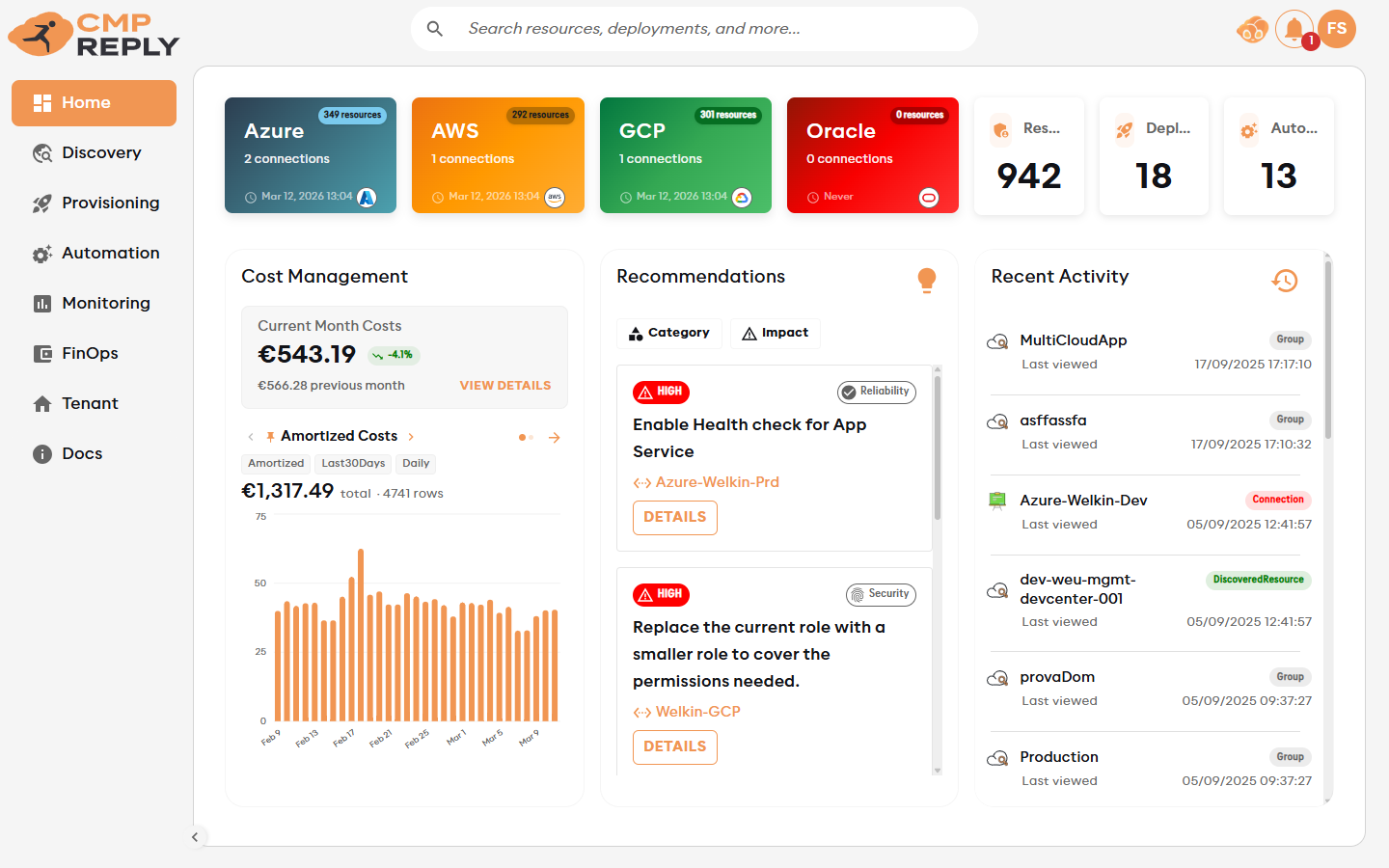
When you first log in, you will see the main application shell. It has four areas:
Left sidebar — main navigation, collapsible to icon-only via the toggle at the bottom-left
Top bar — tenant name on the left; notifications, your account avatar, and the CMP Agent chat button on the right
Main content area — changes based on the selected navigation item
Breadcrumb / page title — shows your current location inside the platform
Left navigation items#
Item |
What it does |
|---|---|
|
Summary dashboard: key stats, pinned cost queries, top recommendations, recent activity |
|
Cloud resource inventory (CMDB) across all providers |
|
Cost visibility, allocation, analysis, optimisation, and monitoring dashboards |
|
Governed Terraform Deployments, approved Modules and Policy guardrails |
|
Scheduled start/stop and tag-enforcement policies |
|
Infrastructure dashboards and monitoring alerts |
|
Users, connections, and auditing |
 Home
Home Discovery
 FinOps
 Provisioning
 Automation
 Monitoring
 Tenant
The sidebar collapses to icon-only by clicking the toggle at the bottom. All items remain accessible via tooltip when collapsed.
The Home page#
The Home page is your personal command centre. It surfaces the most important data from across the platform in one view.
Section |
What it shows |
|---|---|
Summary cards (top row) |
Discovered Resources count, Active Deployments, Active Automation Policies, Open Recommendations — each card links directly to the relevant module |
Cost overview |
Org-level cost trend. If you have pinned queries from FinOps → Analyze, up to 3 custom charts appear here instead |
Top recommendations |
AI-scored cost, security, and performance recommendations across all providers; click any to see affected resources and navigate to Discovery |
Recent activity |
Latest platform actions: discoveries, deployments, policy runs |
Tip
Pin up to 3 custom analysis views from FinOps → Analyze to make them appear on your Home page as a personal dashboard.
Notifications and recent items#
The notification bell in the top bar shows platform events that need your attention, such as completed background operations, alert rule state changes, budget warnings, or failed actions. Open the bell to review notifications, jump to the related entity, or dismiss them one at a time. Use Dismiss all when you have reviewed the list.
Reply CMP also keeps track of recently opened items, such as resources, dashboards, reports, connections, and policies. Recent items help you return quickly to the work you were doing without navigating through the full module tree.
The Account menu#
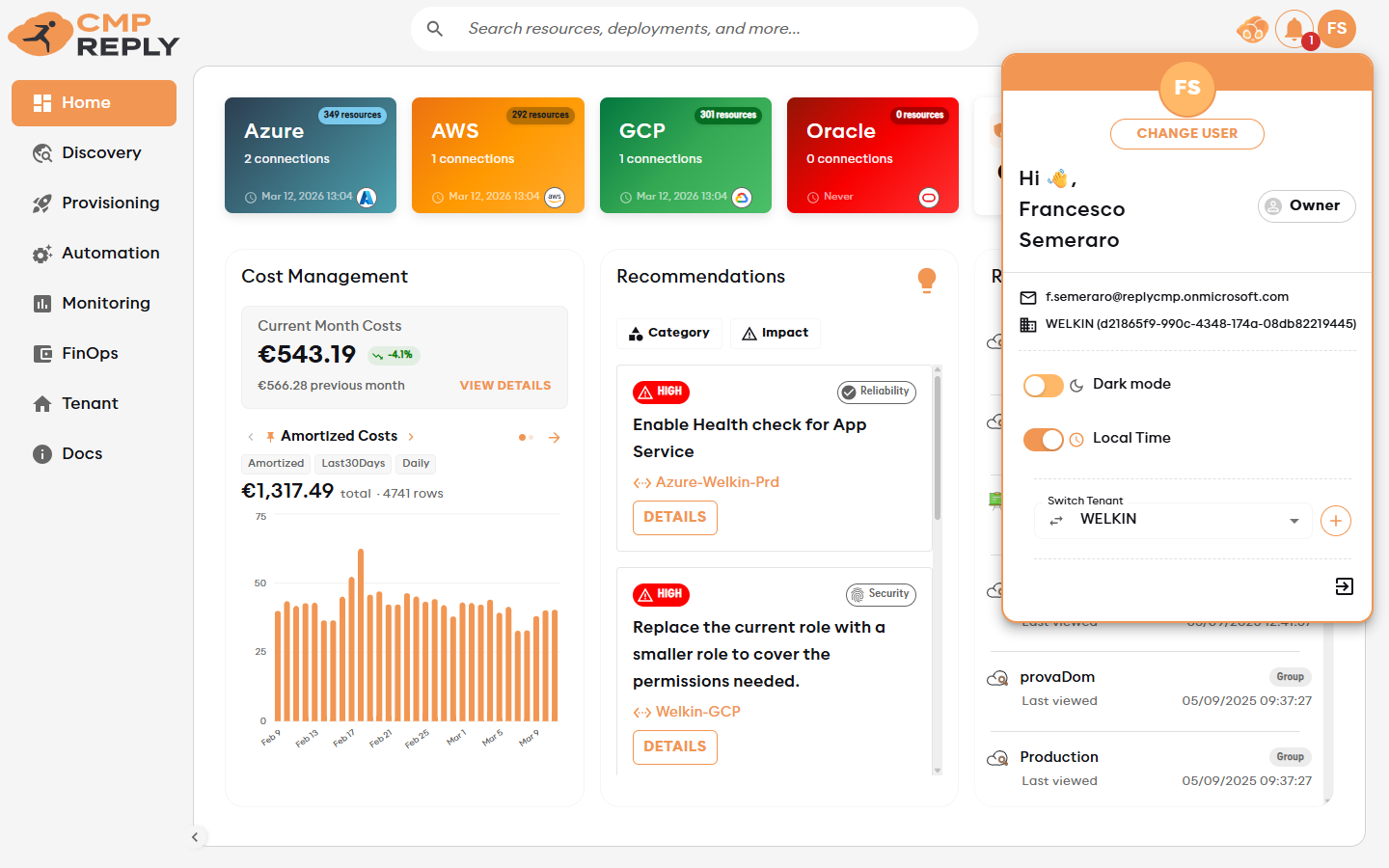
The account avatar in the top-right opens a popover with profile and session controls.
Item |
Description |
|---|---|
Display name / email |
Your identity as logged in via Microsoft authentication |
Dark mode toggle |
Switches the entire application to a dark colour scheme; preference is saved per browser |
Local Time toggle |
When on, all timestamps use your browser’s local timezone; when off, UTC is used |
Tenant switching |
If you have the Owner role and multiple tenants, switch without re-logging in (takes ~30 seconds) |
Logout |
Ends your session immediately |
The CMP Agent button#
The  mascot in the top-right bar opens the CMP Agent — Reply CMP’s built-in AI assistant. It is always available from any page.
You can ask it questions like:
“What was our AWS spend last month?”
“Which groups are close to their budget?”
“How many VMs do we have in production?”
See CMP Agent for the full guide.